Your devices.
Your control.
Remotly brings your TV and the smart home devices around it together on your iPhone. Pair your TV over Wi-Fi, add the lights, plugs and other devices your home already exposes, and control them all from one list.
No account required. Remotly talks to your devices directly, or to the Home Assistant server you choose.
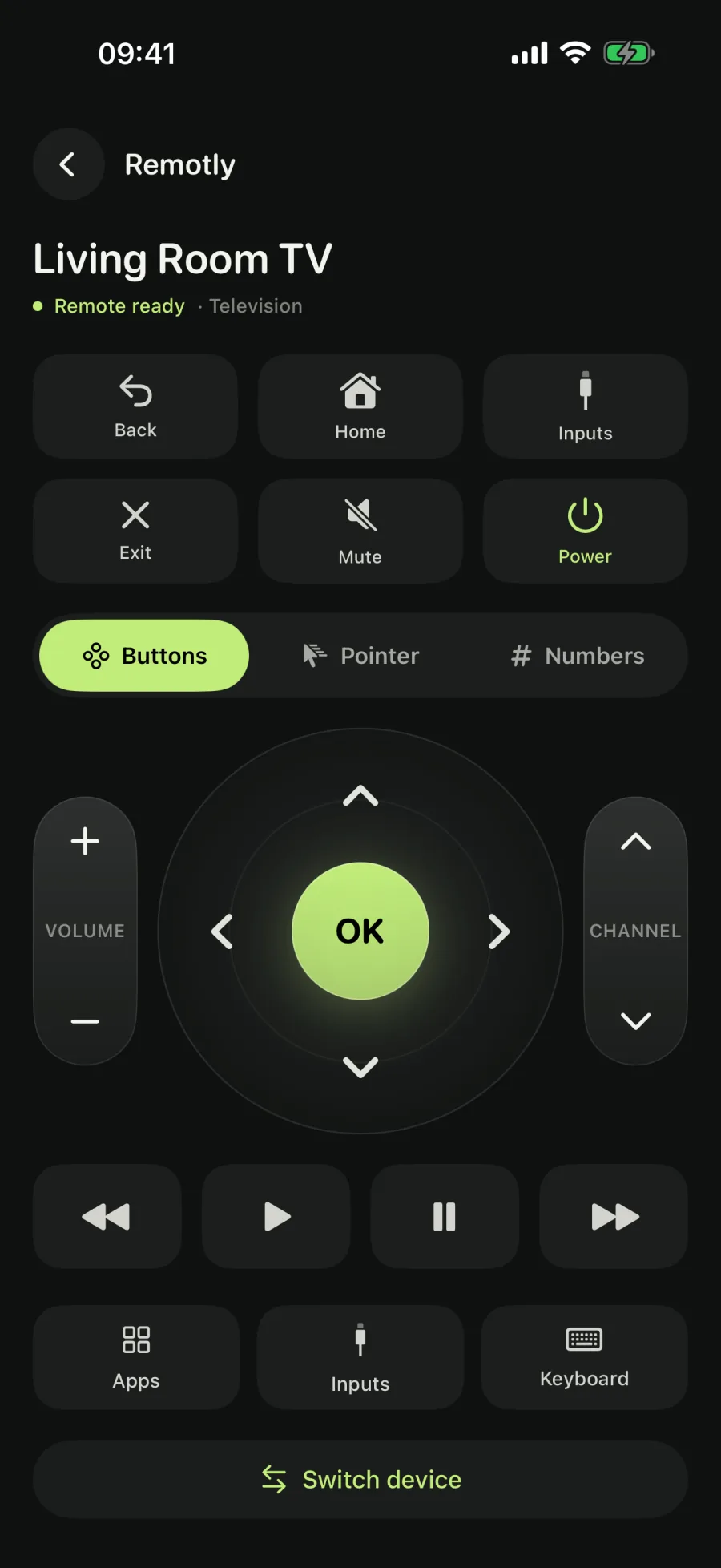
Every control you need. Nothing you don't.
Remotly connects through the control service a device actually exposes — not by brand name. This is what the current release supports.
Everyday TV controls
Directional pad and OK, back and home, volume and mute, channels and playback. Laid out so your thumb finds them without looking.
Pointer
Move an on-screen pointer from your iPhone.
Type on your TV
Send search terms and passwords from the iPhone keyboard instead of pecking at an on-screen grid.
TV apps and shortcuts
Open apps installed on your TV and save your favorites as shortcuts, right on the remote.
Inputs
See the TV's inputs by name and switch to the console, set-top box or laptop with one tap.
One list for every device
TVs, lights, smart plugs, climate, curtains, vacuums, fans and locks share the My devices list. Give each one a familiar name and open it in a tap; nothing runs in the background.
Lights, plugs and more
Add devices through Home Assistant, a Shelly Gen2+ device on your network or a Philips Hue bridge. Remotly shows only the controls a device reports: brightness and color where the lamp has them, a position slider only where the curtain is calibrated, lock and unlock as two separate buttons.
Home Assistant · Shelly · HueYour language
40 language and regional options, persistent language choice and full right-to-left layouts for Arabic, Hebrew and Urdu.
Private by design
No advertising, no cross-app tracking and no Remotly account. Device names, addresses, pairing secrets, access tokens and text sent to your TV are not shared with RevenueCat or the developer. Bundled translations work offline.
Connected in three steps
Nothing to configure on the phone. Your iPhone and the device just need to reach each other.
Add a device
Open My devices, tap Add device and choose an integration: Television, Home Assistant, Shelly or Philips Hue. Compatible TVs, Shelly devices and Hue bridges on your Wi-Fi appear when you ask, never before.
Pair once
A TV shows a code or asks you to confirm on its screen. A Hue bridge asks for its link button. Home Assistant takes your server address and a long-lived access token. Remotly remembers each one.
Take control
The device opens with exactly the controls it reports. Saved devices reconnect from their card next time, and a TV that allows it skips the code.
Remotly never starts a search, pairing or command on its own. Discovery runs only when you ask for it, and a command is sent once, when you tap; nothing is retried behind your back. Can't find your TV? Add it by IP address under I can't find my TV → Advanced connection. Shelly devices and Hue bridges accept a manual address too.
Works with what it says it works with
Remotly connects through the control service a device actually exposes — not by brand name. This is what the current release supports.
Televisions
Televisions
Full toolsetCompatible TVs get the complete Remotly experience: everyday controls plus the pointer, TV apps, inputs and keyboard tools. Text input and pointer support depend on the TV and the app running on it.
- Direction pad, OK, back, home
- Volume, mute and channels
- On-screen pointer
- TV apps and shortcuts
- Input switching
- Keyboard input
Android TV & Google TV
Basic controlsDevices running Android TV Remote Service v2 pair with a six-character code and provide the essential remote buttons. Older Android remote services are detected and shown as unsupported.
- Direction pad, OK, back, home
- Volume, mute and channels
- Playback controls
Smart home
Home Assistant
Optional serverEnter your server address and a long-lived access token. Remotly imports the lights, switches, climate, curtains, vacuums, fans, locks and TV media players your server exposes and keeps their state live through the server's own event stream. Every brand Home Assistant integrates arrives this way, including TVs without a direct adapter.
- Lights: on/off, brightness
- Smart plugs and switches
- Climate: temperature, modes, humidity
- Curtains: open, close, position, tilt
- Vacuums: start, pause, dock
- Fans: speed, oscillation, direction
- Locks: lock and unlock
- TVs: volume, mute, inputs, sound mode
Shelly Gen2+
LocalFound on your Wi-Fi or added by address. Switches, dimmable, RGB, RGBW and tunable-white lights and calibrated covers, each channel as its own device, with live status from the device's own RPC channel. Gen1 devices are not included.
- Smart plugs and switches
- Lights: on/off, brightness
- Color and color temperature
- Curtains: open, close, position, tilt
Philips Hue
Local bridgeFound through your bridge on the local network and paired with its link button. Hue lights with on/off, brightness, color and color temperature as each lamp reports them. The bridge certificate is verified before anything is sent, and the Hue cloud is never used.
- Lights: on/off, brightness
- Color and color temperature
- A TV must be on, reachable on the same local network and allow pairing. Shelly devices and Hue bridges need that same network. A Home Assistant server is reached at the address you enter. Guest networks and router client isolation can block discovery.
- A category never grants a control. Remotly reads what each device reports and shows only that, so a lamp without color gets no color picker and an uncalibrated cover gets buttons but no position slider.
- Samsung Tizen, Roku, older Android remote services and other TV platforms have no supported direct connection in this release; a TV your Home Assistant server exposes can still be added as a media player. Matter, SmartThings, Tuya, Nest and Shelly Gen1 are not supported. Garage doors, gates and door openers are deliberately left out. Finding a Chromecast or DLNA device does not mean the TV can be controlled.
- Remotly is an independent application and is not affiliated with Google, Signify, Shelly, the Open Home Foundation or any device manufacturer. Brand names belong to their respective owners.
Questions, answered
Still stuck? The support page walks through connection problems step by step.
Which TVs does Remotly work with?
Directly: compatible TVs, and Android TV or Google TV devices running Android TV Remote Service v2. Through Home Assistant: any TV your server exposes as a media player, with the controls it publishes. Samsung Tizen and Roku have no supported direct connection in this release.
Which smart home devices can I control?
Lights, smart plugs and switches, climate, curtains, vacuums, fans and locks through Home Assistant; switches, lights and covers on Shelly Gen2+ devices; and Hue lights through a Philips Hue bridge. Each device shows only the controls it reports. Matter, SmartThings, Tuya and Nest are not supported.
Do I need Home Assistant?
No. TVs, Shelly devices and Hue bridges connect directly. Home Assistant is optional: enter your server address and a long-lived access token, and Remotly imports the supported devices your server exposes. The token is stored in the iOS Keychain and is sent only to that server.
Do I need an account?
No Remotly account is required. Commands travel directly to your TV, Shelly device, Hue bridge or Home Assistant server; subscriptions are handled by Apple and RevenueCat.
Why can't Remotly find my TV?
Check that the iPhone and TV are on the same Wi-Fi network and that Local Network access is allowed for Remotly in iOS Settings. Guest networks and client isolation can block discovery. You can also enter the TV's IP address under I can't find my TV → Advanced connection. Shelly and Hue setup screens have a manual address field as well.
The pairing code doesn't appear. What now?
Make sure you selected the right TV, bring the TV to its home screen and try again. Some TVs ask you to confirm with their existing remote instead of showing a code. Restart the TV if it still doesn't appear. A Hue bridge shows no code: press its link button, then select it again.
Does it work away from home or over cellular?
TVs, Shelly devices and Hue bridges are local-network only: your iPhone and the device need to be on the same Wi-Fi network. A Home Assistant server is reached at the address you enter, so it works wherever that address does.
How much does Remotly cost?
Finding and pairing devices is free; all remote and device controls require Pro. The annual plan offers eligible customers a 3-day free trial, followed automatically by the yearly price shown before purchase unless cancelled. Monthly and lifetime plans have no trial; lifetime is a one-time purchase without renewal. Apple determines trial eligibility. Monthly and annual subscriptions renew automatically unless cancelled. Cancel in Apple subscription settings; cancel a free trial at least 24 hours before it ends. Uninstalling does not cancel. Prices and available offers are shown before confirmation; supported features vary by device.
Every device, one app.
Download Remotly, add your TV and the devices around it, and control them all from one list.
Requires a compatible TV, Shelly device, Hue bridge or Home Assistant server; on iPhone, iOS 17 or later.